How to Run a PC Health Check? (CPU, GPU, RAM and Disk Diagnostic Guide)
A complete guide to checking CPU temperature, GPU stress/FPS behavior, RAM stability, and SSD/HDD health step by step.
1. What Is a PC Health Check?
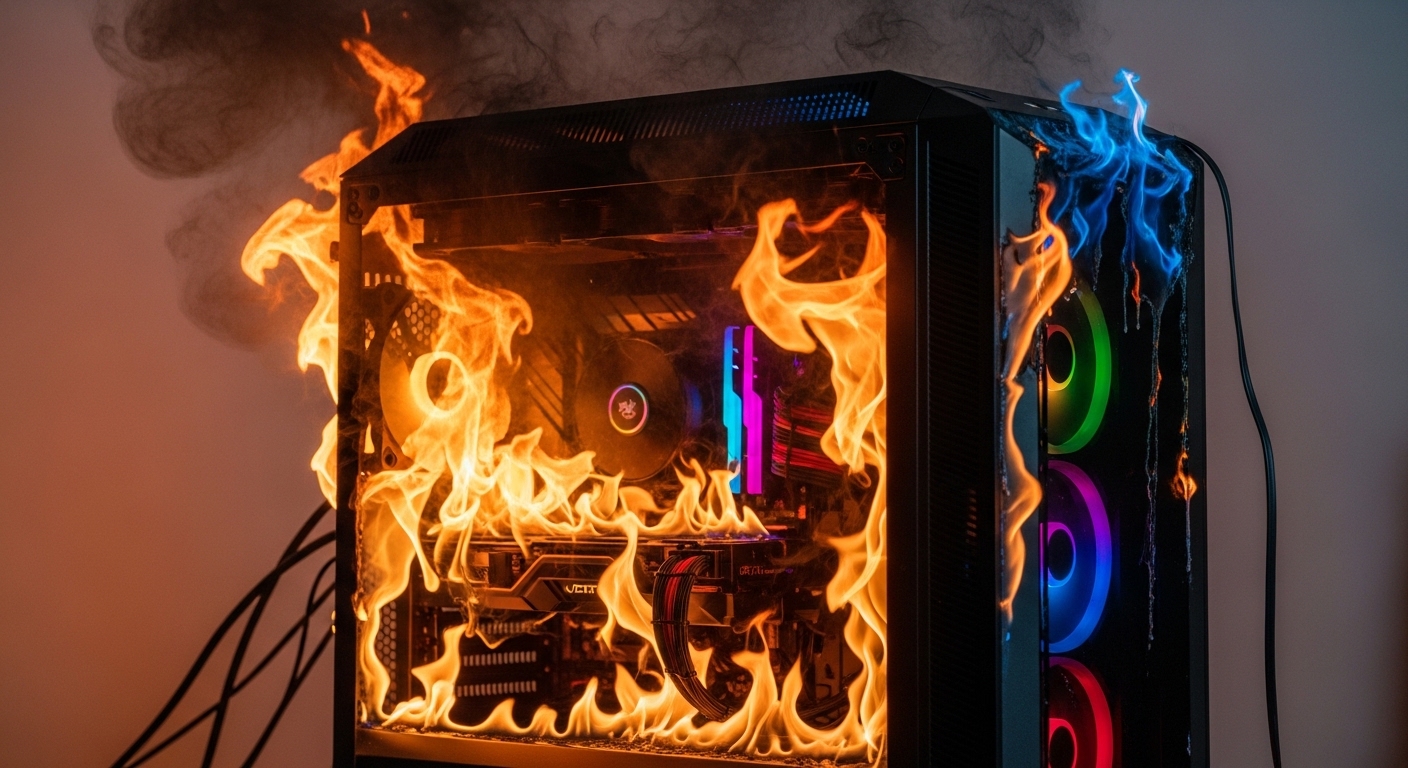
Slowdowns, freezes, sudden stutter, or overheating are often related to hardware health. A proper PC health check helps you understand whether your system is stable, safe, and performing as expected.
In this guide, we cover CPU temperature checks, GPU stress and FPS monitoring, RAM diagnostics, and disk health verification in one practical workflow.
2. Why Is a PC Health Check Important?
- Detects performance drops before they become major problems.
- Helps identify hardware issues early.
- Improves gaming and application stability.
- Extends overall hardware lifespan.
3. How to Measure CPU Temperature (Processor Check)
The CPU is one of the most critical components in your system. Overheating can cause throttling, instability, and even emergency shutdown.
Recommended tools: Core Temp, HWMonitor, Cinebench, Prime95.
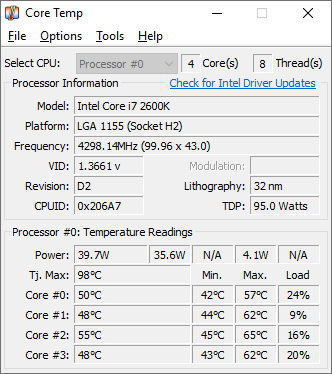
4. Checking CPU Temperature with Core Temp
Core Temp gives quick per-core temperature visibility.
Steps:
- Open Core Temp.
- Observe Core #0, Core #1, and other core values.
- Track real-time temperature in the temperature field.
- Run a short Cinebench load test.
- Record maximum observed temperature.
Typical CPU temperature ranges:
- Idle: 30-50C
- Under load: 70-85C
- Above 90C: Risk zone
5. How to Test GPU Performance (FPS and Thermal Behavior)
GPU performance directly affects frame rate in games. A stress test helps verify thermal behavior and performance stability.
Recommended tools: MSI Afterburner, FurMark, 3DMark.
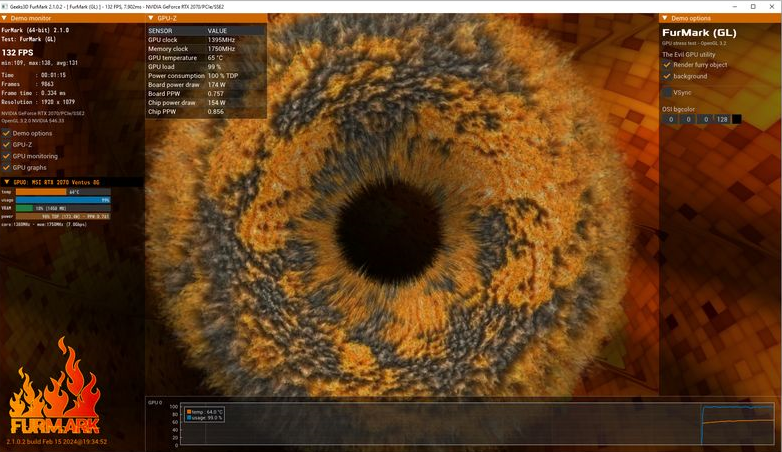
6. GPU Stress Testing with FurMark
FurMark is useful for quick thermal and stability validation.
Steps:
- Open FurMark.
- Set resolution to 1920x1080.
- Set anti-aliasing to 2x or 4x.
- Start GPU stress test.
- Monitor temperature and FPS behavior.
What to watch for:
- 80-85C is usually acceptable
- Above 90C is high-risk
- Sharp FPS drops may indicate instability
- Visual artifacts can indicate GPU errors
7. How to Run a RAM Test
RAM errors can cause freezes, blue screens, and random crashes.
Recommended tools: MemTest86, Windows Memory Diagnostic.
Expected result: Ideally 0 errors.
8. How to Check SSD / HDD Health
Disk condition directly affects responsiveness and load times.
Recommended tools: CrystalDiskInfo, CrystalDiskMark.
General targets:
- Health: 90% or higher
- Speed: close to expected drive performance
9. Full System Stability Testing
Use AIDA64 to stress CPU, GPU, and RAM together and validate system stability.
With this method you can:
- Load multiple core components at the same time
- Measure overall stability under sustained stress
- Observe long-load thermal behavior
10. Signs Your PC Is Healthy
Your system is generally healthy if:
- There is no excessive overheating
- FPS remains stable during load
- No freezing or random crashes occur
- Disk health is strong
- RAM tests report no errors
11. Final Recommendation
Routine health checks are one of the most effective ways to maintain performance. Regularly monitor CPU temperature, test GPU stability, and verify RAM/disk condition.
With consistent checks, your PC stays faster, cooler, and more stable over time.